If you’re here, you probably downloaded one of my interactive resources and ran into a little Google Map drama. First of all, you’re not alone. Tech issues happen, even with the best tools. These maps are designed to be easy and engaging for your students, but sometimes school filters, browser quirks, or just plain stubborn computers get in the way. No worries, I’ve got you.
I love Google My Maps to create interactive activities for students to explore with, but sometimes they can be a little tricky. Let’s run through a few troubleshooting scenarios:
1. How are you opening the PDF?
Make sure you click Download, then open the PDF with your computer’s PDF reader – NOT your browser. If it opens in a new tab in Chrome (or Safari, or Edge) it’s very likely the browser is breaking the link. Go to your downloads and open the file with your computer’s PDF program (Adobe is a really common one). Still having issues clicking the link? Make sure your PDF Reader software is up to date!
Quick note – there’s no need to open the map with TeachersPayTeachers digital tool as this resource is already digital!
2. Did you make a copy of the map and assign the copy?
If you haven’t done this yet, follow the instructions in the PDF download to make a copy of the Google Map. Many districts are starting to block Google resources that come from an owner outside of the district, so chances are your school’s network is blocking something.
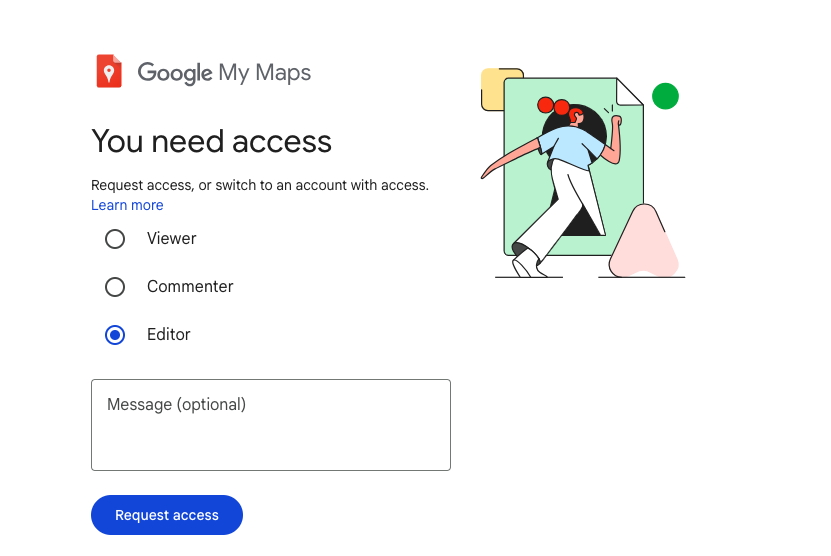
Open the map, click the 3 dots in the menu, and select Make a Copy. Open your copy, set the sharing settings to View, then share that link with your students! There are picture instructions for this in your download.
3. I made a copy and they still can’t see it!
Okay, let’s get more specific. “It isn’t working” is really hard to troubleshoot so let’s see what’s happening on your screen. If you (or your students) are seeing a message like the one below, there’s a pretty quick fix, but it’s out of your (and my) hands.
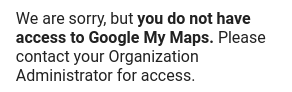
That’s a setting that your school’s technology gal or guy can switch. When it says “you don’t have access to Google My Maps. Please contact your Organization Administrator for access.” it’s saying, Hey! Your school has this turned off. Tell them to turn it on!
I actually had to do it at my new school last year! All I did was walk down to their office with my phone and my laptop and showed the tech person the map pulled up on my phone (since my phone wasn’t on the network it opened there so I could show them) and explained to tech dude why I wanted access to Google My Maps through the school domain. He had it fixed in about 5 minutes! Whew! Thanks, tech dude!
4. Okay, I got the Map open, but my students still can’t see everything. What’s going on?
Does your school block YouTube? The videos linked on the map are all hosted on YouTube, as specified in the resource description. You can open up the map on your computer and “explore” together if you’d like!
YouTube isn’t blocked, but you’re seeing black squares or the images aren’t loading? Please make sure you’ve cleared your cache recently so that things load correctly.
5. What If the Map Loads But Not Like It’s Supposed To?
So you finally got the Google Map to open — hooray — but now it’s acting a little off. Maybe some pins are missing or a few images just refuse to show up. Before you panic, try opening it in a different browser. Chrome usually gets along best with Google Maps. Safari can be stubborn and Firefox likes to do its own thing.
Still not right? Try going incognito. Seriously. It clears away all the extra stuff that might be interfering like extensions or weird browser history. It’s like giving your tech a quick reset.
Also double check which Google account you’re signed into. Sometimes your school email is logged in by default and that can block access without warning. Logging out and back in with a personal or unrestricted account can fix things fast.
Using Google Maps Without the Tech Overload
Tech can be a lifesaver but it can also drive us a little bonkers. If your Google Map is giving you trouble on a busy teaching day, don’t worry. You still have options.
Try projecting the map and doing a guided tour with your class. You control the clicks and they follow along. Think of it like a virtual field trip with you at the wheel. Everyone gets the info, no one has to troubleshoot.
Or take screenshots of the Google Map and upload them to your LMS. Add a couple of questions or reflection prompts and boom instant lesson. Is it fancy? No. Is it effective? Absolutely.
Whether you’re using the full interactive version or going old-school with images and questions, it all counts as part of your Digital Activities. Your students are still exploring, learning, and having a blast.
Tech hiccups happen. You’ve got backup plans and I’ve got your back. Always.
This didn’t fix anything!
Oh no! I’m sorry to hear these didn’t resolve your problems. I’m happy to support you and work with you to get it fixed. Please do one of the following:
- If you purchased the resource on TeachersPayTeachers, they actually have a tech support team that can help you out. Use their Contact Us page to send them a message and get more support! Click here to send in a help request ticket!
- Send me an email! If you’ve already tried all the steps in here and still aren’t sure what’s going on, feel free to send me an email. Please include a screenshot or screencasted video of what you are seeing on the screen to help me help you. It’s really hard to fix things when I can’t see what’s happening, so that will help me serve you faster!
Thanks so much for supporting me by downloading one of my resources. Please know that I will do my best to help you resolve any technical issues you encounter!


-
El Día de los Muertos Activities Day of the Dead Escape Room Spanish Lesson Plan
$4.25 Add to cart -
Sale!
Día de los Muertos Activities for Exploring Day of the Dead
Original price was: $12.59.$8.12Current price is: $8.12. Add to cart -
Día de los Muertos Day of the Dead Digital Activities in English
$3.75 Add to cart -
La Familia Spanish Family Tree Vocabulary Activity Reading Comprehension Passage
$5.25 Add to cart