Let’s play a little game: “Never have I ever…worked in a school that wasn’t 1:1.” “Never have I ever…worked in a school that didn’t integrate Google Apps for Education!” “Never have I ever NOT loved a good technology tip that saved me time!” I loooooove integrating technology in my classroom in a way that serves and facilitates language acquisition. Sometimes tech can be overwhelming, so I thought I would round up some of my favorite Technology Tips for Google Apps for Education in this post!
Assignment Options on Google Classroom
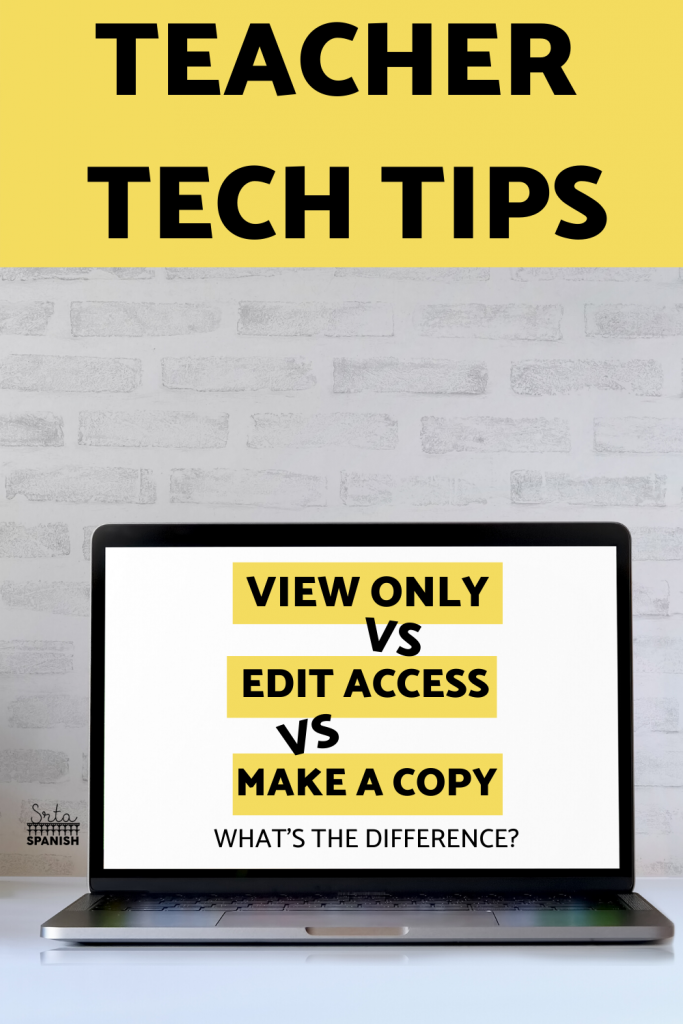
If you’re new to Google Classroom, the menu options can be confusing. Check out this simple breakdown so you know exactly what to click when! Here’s how to do it like a pro: open your file in Google Drive, click the Share button, and make sure link sharing is turned on. Then, copy the link and replace the last part that says edit?usp=sharing with copy — boom, instant force copy link.
This is perfect for when you’re sharing lesson plans, templates, or student choice boards and you don’t want anyone editing your original file. No more “Oops, I accidentally deleted everything” moments.
Pro tip: add a quick note above the link that says “Click to make a copy” so no one’s confused. I even use this trick on classroom newsletters and resource libraries to make sure everything stays clean and organized.
Honestly, once you start using Google Apps for Education, you’ll never go back.
How to Create a Force Copy Link on Google Drive

A force copy link automatically makes a copy of a file when a user clicks on the link. This is a MUST know for sharing resources within your school or with colleagues.
Time Saving Tips for Teachers Using Google Chrome

The internet is full of tools to streamline your work, save you time, and help you tackle that to do list! This post has my favorite extensions, shortcuts, and Google Apps for Education that help make work more efficient.
Using Boom Cards with Google Classroom
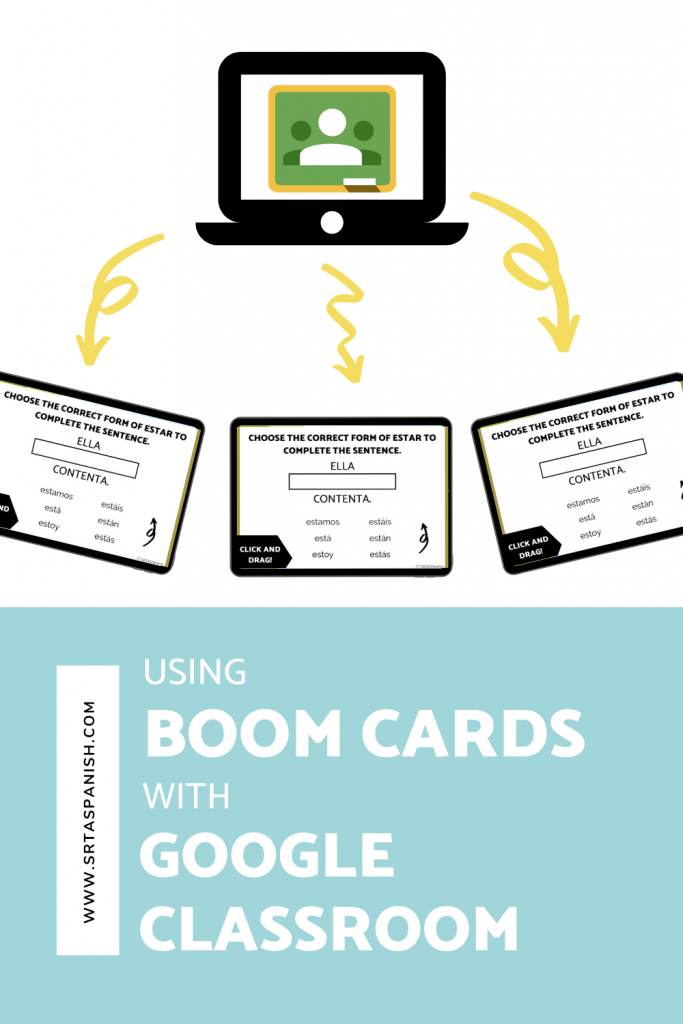
I love using Boom Cards! They’re basically digital, interactive task cards that you can assign and use to give students instant feedback. They also integrate beautifully with Google Classroom in a way that saves you a ton of time and set up!
Use Flubaroo to Grade Open-Ended Questions on Google Forms

Okay, I’m not going to lie, out of all the tips in this post, this one is the most intense. However, it’s also probably the most worthwhile when it comes to streamlining digital grading practices. This post includes a video walkthrough so you can play & pause as you try it out!
Google Slides Isn’t Just for Presentations
Okay, real talk. If you’re only using Google Slides for presentations, you are missing out on some serious magic. I loooooove using Slides to create interactive lessons, student portfolios, vocabulary notebooks, and even digital escape rooms. The best part? It’s super easy to customize and reuse.
Try this: create a digital vocabulary notebook where students can drag and drop images, type definitions, and even add voice recordings. It’s such a simple way to make learning visual and interactive, especially for those high-frequency words your students need on repeat.
Another favorite hack? Use the “master slide” feature to lock down instructions or images so students can’t accidentally move them around. It keeps your layout clean and lets them focus on the task at hand. Click View then Master to set it up. You’re welcome.
Quick Tech Tip You’ll Want to Use Every Week
Let’s talk about Google Keep. I know, it kind of flies under the radar, but trust me this little tool is a total powerhouse. Think of it like digital sticky notes that follow you around your Google world.
Use Google Keep to jot down lesson ideas when inspiration strikes, store links to your favorite classroom games, or even create a running checklist of weekly to dos. You can pin notes, color code them, and even set reminders so nothing slips through the cracks.
But here’s the best part. You can open Google Keep right inside Docs or Slides and just drag your notes into your work. Instant lesson plans, resource lists, or even reflection prompts. No more bouncing between tabs or losing that one idea you swore you’d remember later.
Teacher brain? Consider this your new best friend.
Want More Technology Tips?
Click here to visit the tips category on my blog!


-
Sale!

Spanish Cognates Lesson Plans 1st Day of Spanish Class & First Week of School
Original price was: $22.11.$14.49Current price is: $14.49. Add to cart -
Sale!
Back to School BUNDLE
Original price was: $19.30.$15.65Current price is: $15.65. Add to cart -
Sale!
Back to School Spanish Starter Pack
Original price was: $8.45.$5.59Current price is: $5.59. Add to cart -
Sale!
RAINBOW Classroom Decor BUNDLE
Original price was: $18.41.$12.45Current price is: $12.45. Add to cart